The Create Account email is automatically sent when a new user account is created. In some cases, users may be unable to click the activation link due to email client or spam filter limitations. To address this, you can add the [LOGIN_LINK_SIMPLE] replacement field to display the full login URL in plain text for use by a consumer.
This email template supports the following Replacement Fields:
[LOGIN_LINK] – Standard HTML login link
[LOGIN_LINK_SIMPLE] – Plain-text login link (recommended if emails are going to spam)
[BAD_LINK] – Link for the recipient to cancel or decline the account
Note these replacement fields can ONLY be used within this email template. They will not work in any other template.
To modify the Create account email follow the steps below
1. Open Settings in your Admin Portal

2. Select Email Templates from the left navigation menu
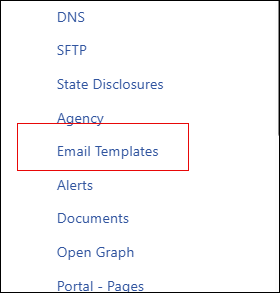
3.Select the first option under Email Templates
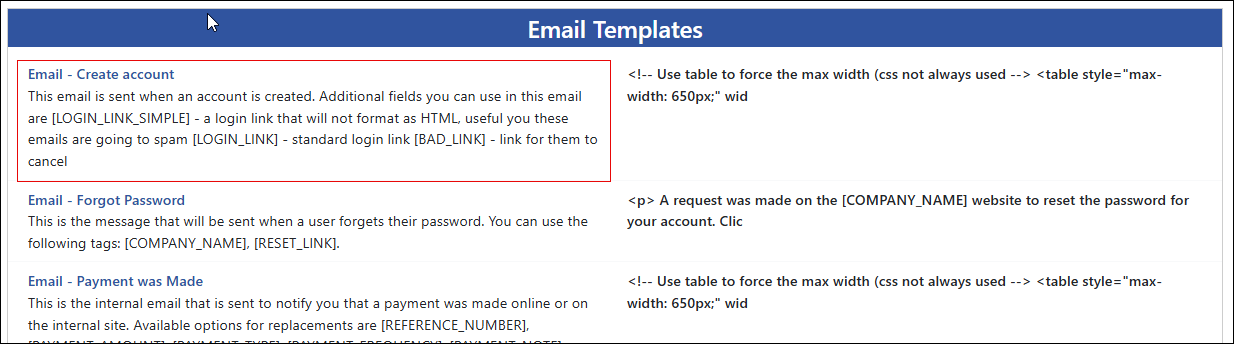
4.Here you can edit the template that will be sent when an account is created
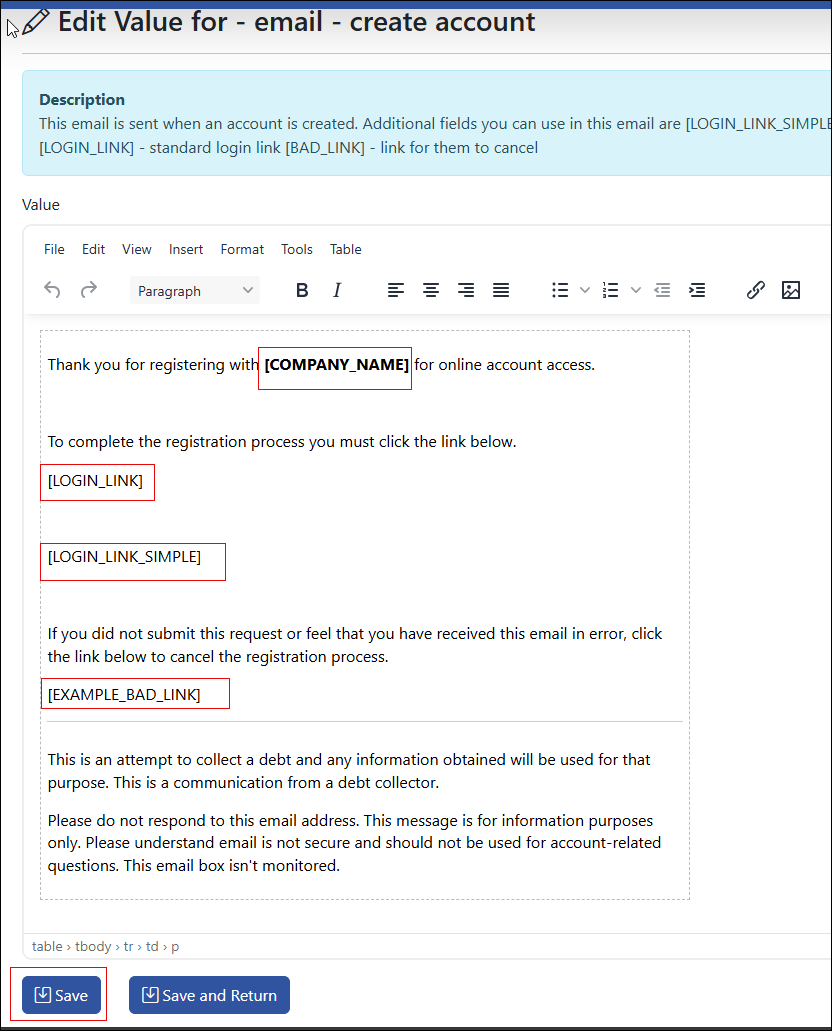
5. Select save to sav anyy changes
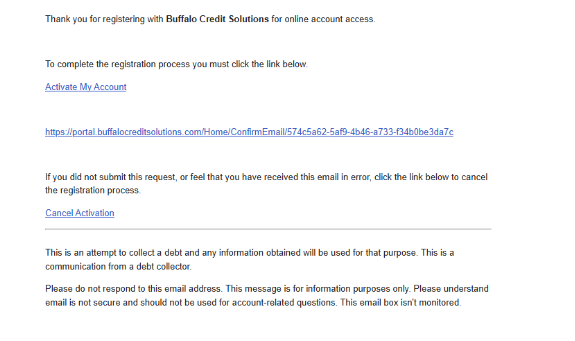
An example of how the email displays to the recipient
Was this article helpful?
That’s Great!
Thank you for your feedback
Sorry! We couldn't be helpful
Thank you for your feedback
Feedback sent
We appreciate your effort and will try to fix the article